
iCloud Syncing
DintCast supports iCloud syncing as a Premium feature, allowing you to keep your podcasts seamlessly in sync across your iPhone and Mac using your Apple ID.
This ensures your listening experience stays consistent no matter which device you use.
What Gets Synced to iCloud
The following data is securely stored in your private iCloud container and synced across your devices:
📚 Directory
- Your subscribed podcasts (all followed shows)
🎵 Playlists & Listening Data
- Your Playlists
- Your Favorites
- Your Downloads list
- Playlist Episode playback progress
⚠️ Audio files themselves are not uploaded to iCloud. Only metadata and playback data are synced. Downloads remain stored locally on each device.
How to Enable iCloud Syncing
Make sure you are:
- Signed in to the same Apple ID on all devices
- iCloud Drive is enabled in system settings
Go to:
Settings -> iCloud Syncing
Turn on Enable iCloud Syncing.
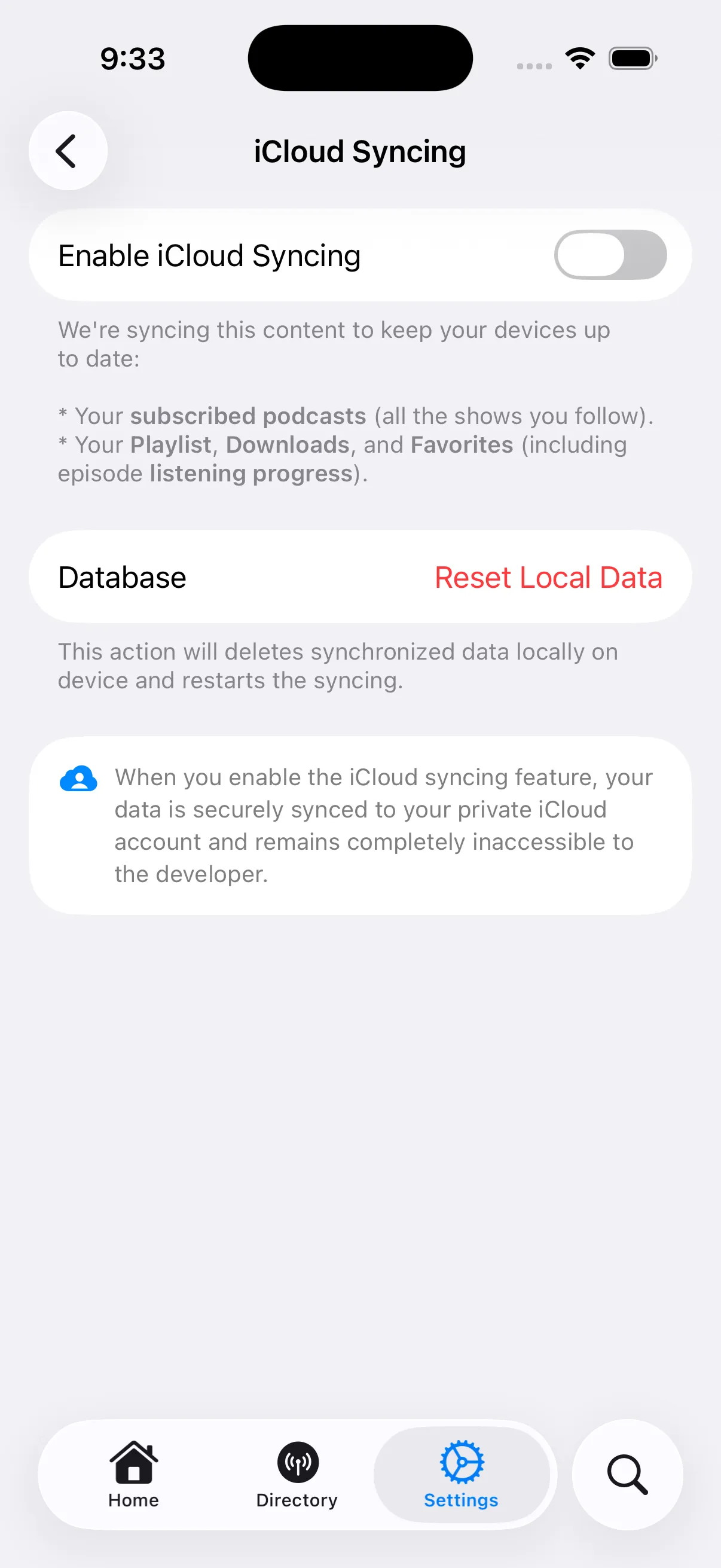
Go to:
Settings -> Advanced
Turn on Enable iCloud Syncing.
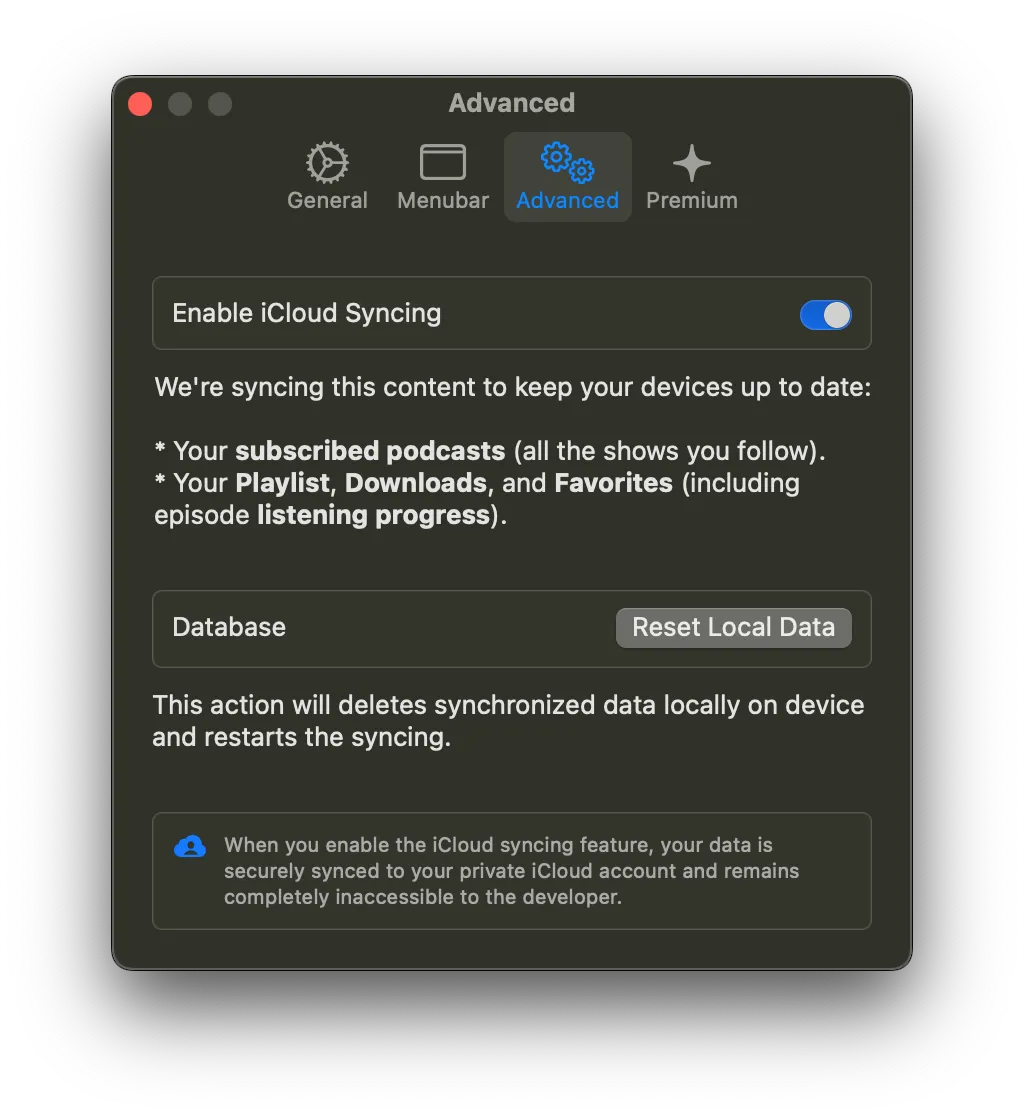
How Syncing Works on Each Platform
Although syncing works across both platforms, behavior differs slightly due to system-level iCloud handling.
📱 iOS
- Syncing is generally near real-time
- Background updates are handled more aggressively by the system
- App lifecycle events automatically trigger sync
- Changes made on iPhone usually propagate quickly to Mac
iOS provides more consistent background CloudKit activity.
💻 macOS
On macOS, iCloud syncing may not always update immediately in the background.
To trigger a sync immediately:
- Switch away from DintCast and return to its main window
- Play or pause an episode
- Seek forward or backward
- Make changes to your directory (subscribe / unsubscribe)
macOS typically syncs when:
- The app becomes active
- Playback state changes
- The database is modified
This behavior is due to how macOS schedules CloudKit synchronization.
If you experience:
- Stuck syncing
- Missing items
- Outdated data
You can reset your local database.
What “Reset Local Data” Does
- Deletes the local database on the current device
- Keeps your data safely stored in iCloud
- Re-downloads and rebuilds data from iCloud
This is useful when:
- Switching accounts
- Recovering from sync corruption
- Troubleshooting inconsistent state
This does not delete your iCloud data — only local cached data on the device.
Things to Keep in Mind
- iCloud syncing requires internet access.
- All synced data is private to your Apple ID.
- Large libraries may take time to sync on first activation.
- Sync speed depends on iCloud system availability and network quality.
If you rely on multiple devices, enabling iCloud syncing ensures your podcasts, playlists, and listening progress stay perfectly aligned across your Apple ecosystem.